Tip: AiphoneCloud and Remote Management are always being improved, so the interface may appear different than in these screenshots.
This article continues from this guide: Getting Started
Click Register Gateway to continue system setup.


A checklist will appear, verifying that the steps mentioned in the previous article were completed. Make sure they have been and click Continue.

Select the model of gateway, either IXGW-TGW or IXGW-GW and click Continue.

There are two options for how an IXGW-TGW can connect to Remote Management. It can either use the direct Ethernet connection via the local network or the built in 4G LTE connection.

To activate the SIM card, see this guide: SIM Billing Guide
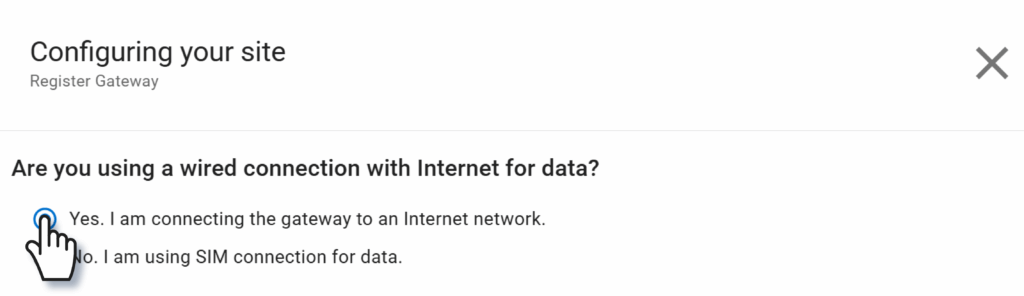
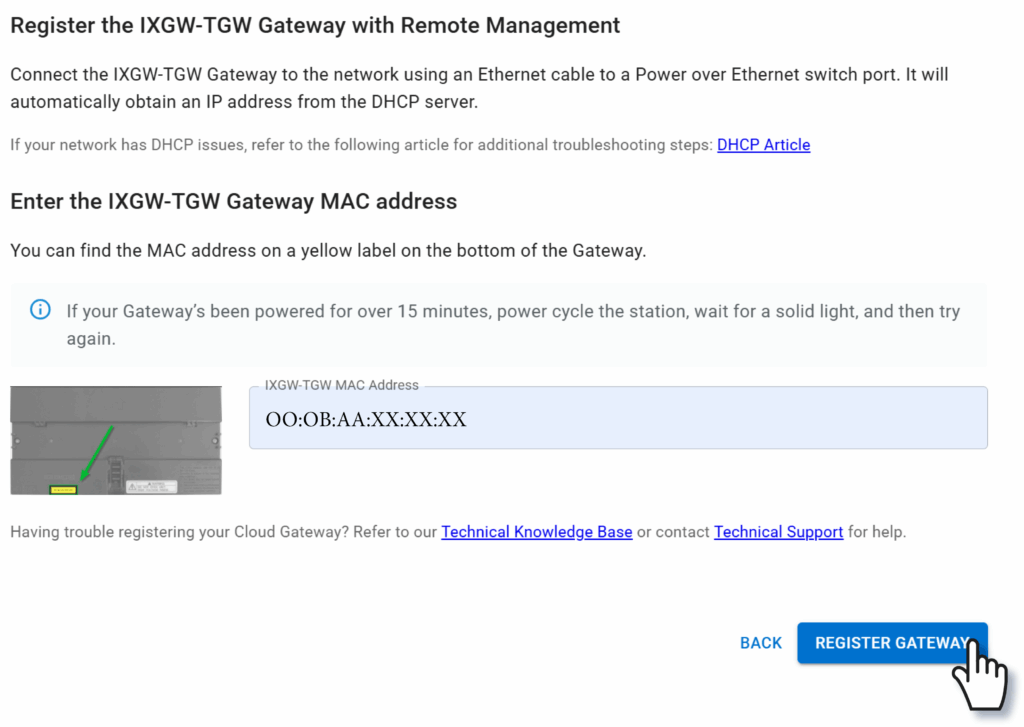
Either way, enter the gateway’s MAC address and click Register Gateway.

Click Start Adding Stations.

A station search will occur. If no stations show up on the new Configuring your site pop-up, click Refresh Station Search. Otherwise, check the found stations that will be added to the site and click Add Stations.

A prompt will appear asking how many IXG mobile apps will be added to the site, between 0 and 8. Choose the desired number and click Continue.

To assign IP addresses to the stations, click Start Associating Stations.

A pop-up window will appear, along with a list of existing stations and their MAC addresses. IP addresses can either be set individually or by batch. Batch IP addressing starts with a chosen IP address, then adds one to the address for each station.
Example: If the starting IP address is 192.168.1.10, the next IP address will end in .11, then .12, and so on.
To assign via batch, enter the first IP address and subnet mask, then click Apply.

Otherwise, click on the fields to enter the information station by station.
Enter an IP address and subnet mask for each station using the desired method. A Default Gateway or DNS can be set if required for the site; consult the site’s network administrator with any questions.
Once the IP addresses have been set, click Associate Stations. The stations will be associated one at a time; this will apply the IP address to the station, causing it to reboot.

Tip: A station reboot takes several minutes. Do not unplug or interrupt a station during this process.

Once all stations have completed their reboot, click Upload Station Settings to apply the settings to the stations. The time taken will vary based on the size of the system.

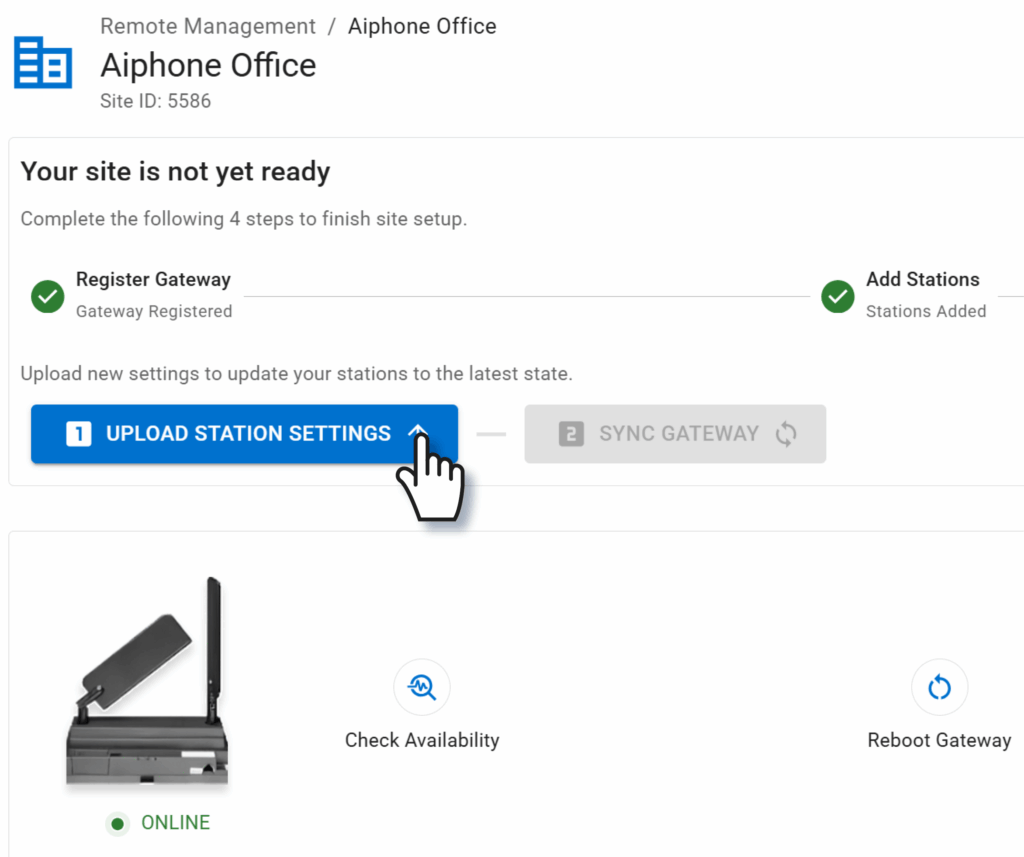
This will complete the upload to stations. To finish registering IXGW-TGW with the portal, click Sync Gateway.

Once the sync is complete, a success message will appear in the top right of the screen. If IXG mobile apps were used, click Save Mobile App Settings.

If any stations have out of date firmware after the settings upload, the Update Firmware button next to the station will be clickable. Do so during a time when the stations will not be in use, as this process will take several minutes for each station.

Tip: During a firmware update, absolutely do not unplug or reboot any stations. Doing so can cause permanent damage to the stations.
This will complete basic setup for the system.