Tip: AiphoneCloud and Remote Management are always being improved, so the interface may appear different than in these screenshots.
Once the site’s units have been created, tenants can be added to them. These tenants can then have IXG Mobile apps and a telephone number assigned to them.
Users can download the IXG Mobile app from these links:
Apple™ App Store™: https://apps.apple.com/us/app/aiphone-ixg/id1444561862
Google Play™ Store: https://play.google.com/store/apps/details?id=jp.co.aiphone.ixgsystem&hl=en-US
Getting Started
To get started, select the Units menu from the site’s home screen. Click the desired unit.

Tip: Residential, Commercial, and Guard units can all have mobile apps registered. Outside Area and Entrance Station units cannot.
The unit’s Unit Details page will be displayed. If not, use the side menu to navigate there.

Click + Add New Tenant.

The tenant will need a First Name and Last Name registered. An email address and phone number can also be assigned.
Tip: The registered email address is used to send IXG Mobile app registration codes, while the phone number is used for placing telephone calls. Both are completely optional.
Each unit can have one Primary Tenant, with all other tenants being Regular Tenants. The primary tenant’s phone number can be called when the unit receives a call, and their name will be displayed on an IXG-DM7-HIDA’s screen when viewing the unit. Both primary and regular tenants can use the IXG Mobile app. Use the radio buttons to select the type of tenant that is being created.

Tip: Telephone number dialing calling requires an IXGW-TGW app gateway with an activated SIM card. See this guide for more details: https://know.aiphone.com/en_US/aiphonecloud-sim-management/aiphonecloud-sim-billing-guide-for-ixgw-tgw
If an email is entered above, place a check next to Email Mobile App Registration Codes.
Tip: The Email Mobile App Registration Codes selection cannot be changed after initial creation. A tenant can be deleted from the main screen and recreated to make a different choice.
Once all of the information has been entered, click Save.

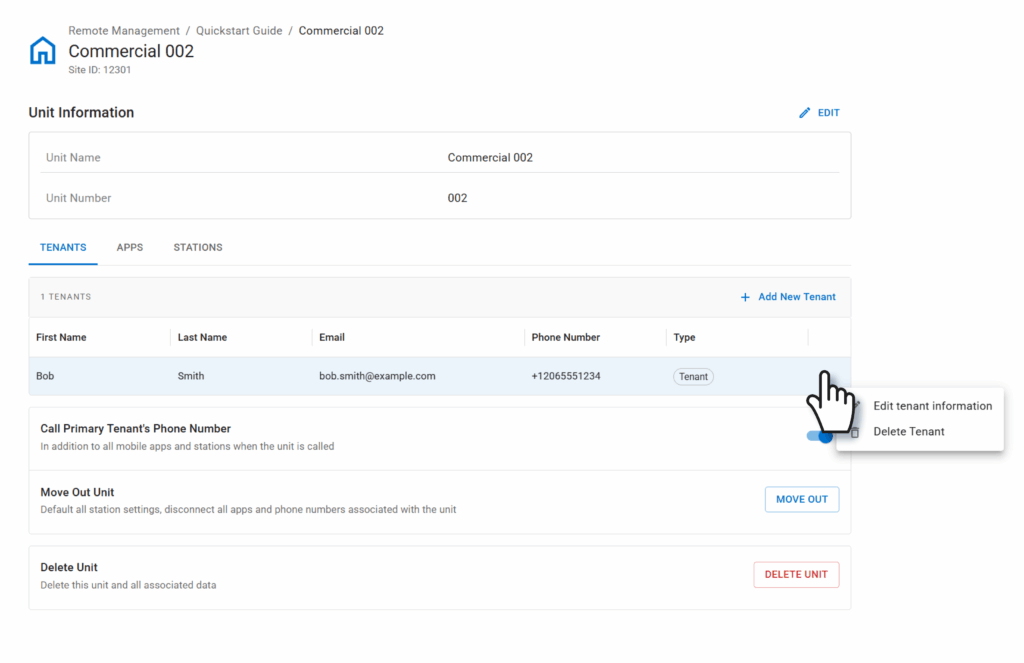
To modify or remove a tenant, click the three dots next to the tenant and select either Edit tenant information or Delete Tenant.

Registering Mobile Apps
To register mobile apps, navigate to the Apps menu. The site’s available mobile apps will be listed, meaning that the slot has not yet been registered. Click the drop-down menu for Invite IXG App Users to choose a way to send the users their code. This will take the form of a QR code that can be scanned from within the IXG Mobile app.

If Email codes to tenants is selected, a list of registered tenants will appear. Use the check boxes to choose which tenants to email, or enter a different email under Send to a new email. Click Send.

Generate a one-time registration code will display a new QR code that can be scanned by the IXG Mobile app.

Download an app registration pdf will create a PDF file that can be manually emailed or printed off for prospective tenants.
Once the codes have been sent out, click Back to Site Detail to return to the main screen. Repeat the previous steps for each unit that will have tenants added.
To apply the settings to the stations and apps click Upload Station Settings.

If mobile apps are used on the site, also click Save Mobile App Settings. This process may take several minutes, depending on network conditions on the number of Units in the system.

After completing the steps, the registered tenants, apps, and phone numbers will be ready to use.